
Android Television Patriot VPN Install
- On your Android powered television, go to the 'Google Play' application and search for 'PatriotVPN'. You will see the application in the list of apps:
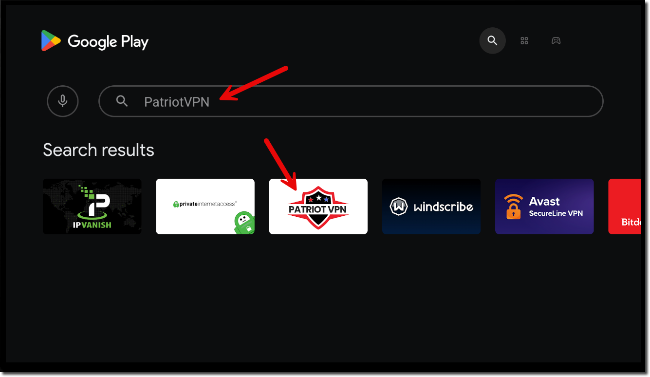
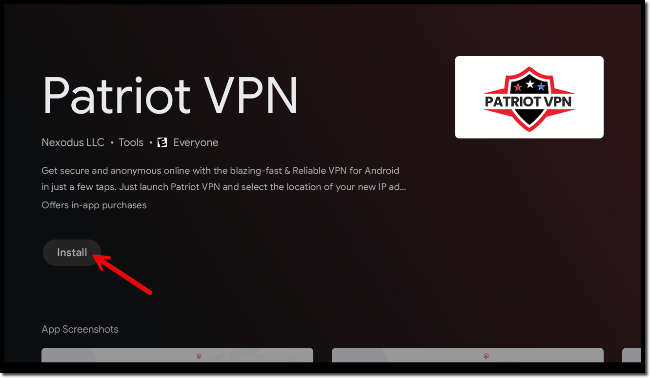
- Click on the application, and when the main screen comes up, click on 'Install':
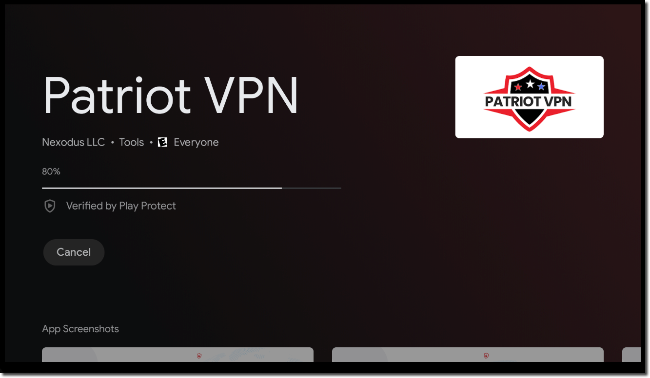
- The application will start to install to your Android powered television:
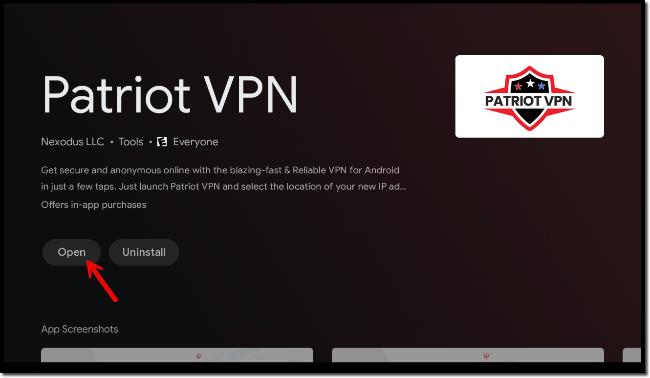
- Once the application is installed, click 'Open':
- The application will start, click the connection button to start the configuration:
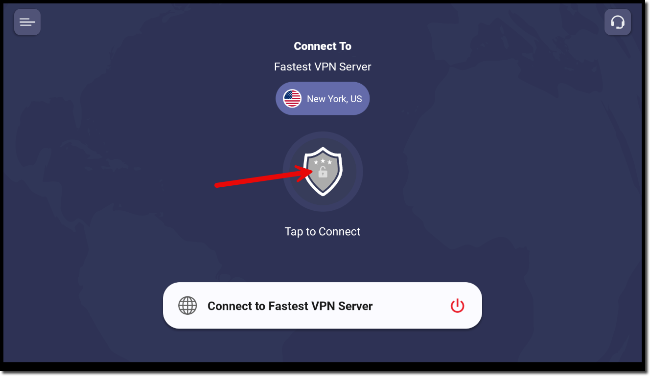
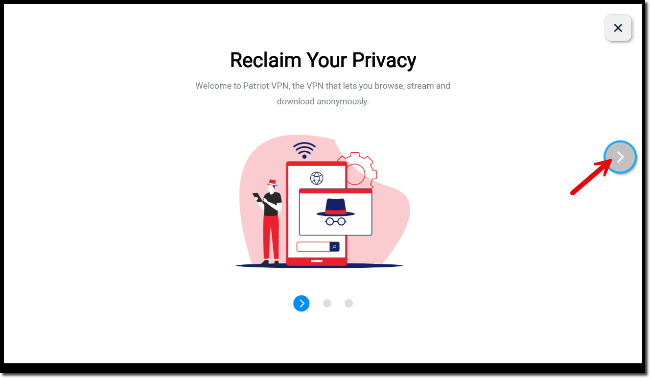
- Click through the introduction screens:
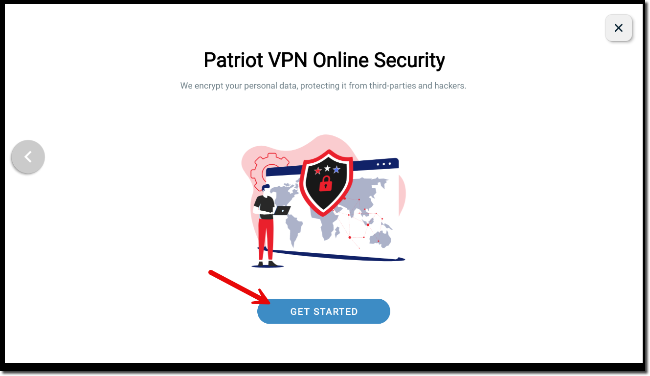
- At the last screen click 'Get Started':
- Either visit the web address presented from your computer or mobile device, or simply scan the QR code on your mobile device to open the login page:
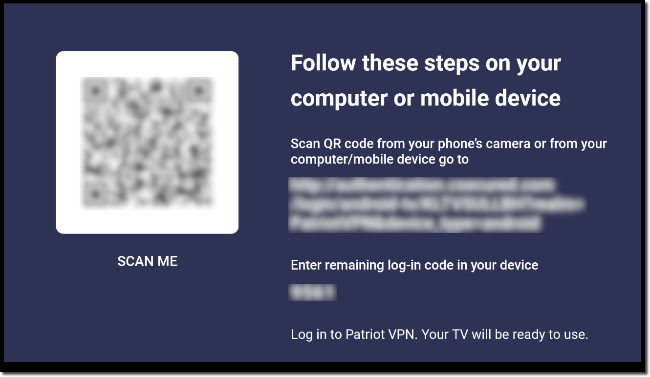
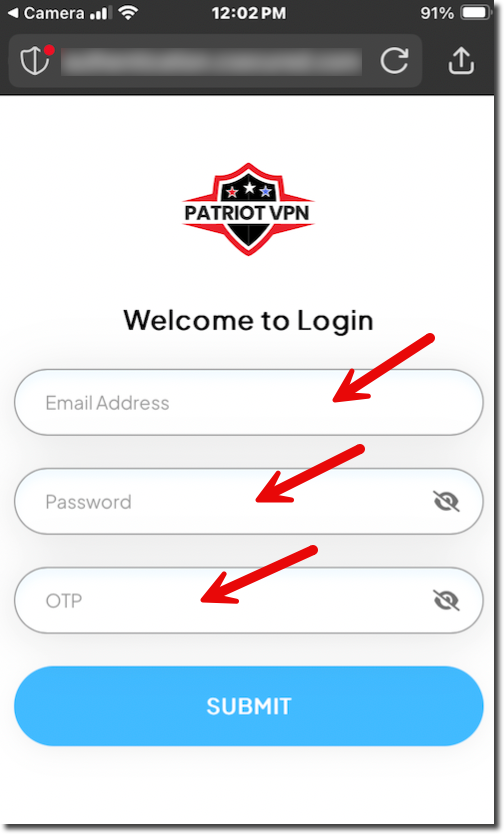
- On your mobile device enter in your email address, password, and your OTP (One Time Password, that log-in code on the screen of your TV). NOTE: You must already have an account established in order to get past this point.
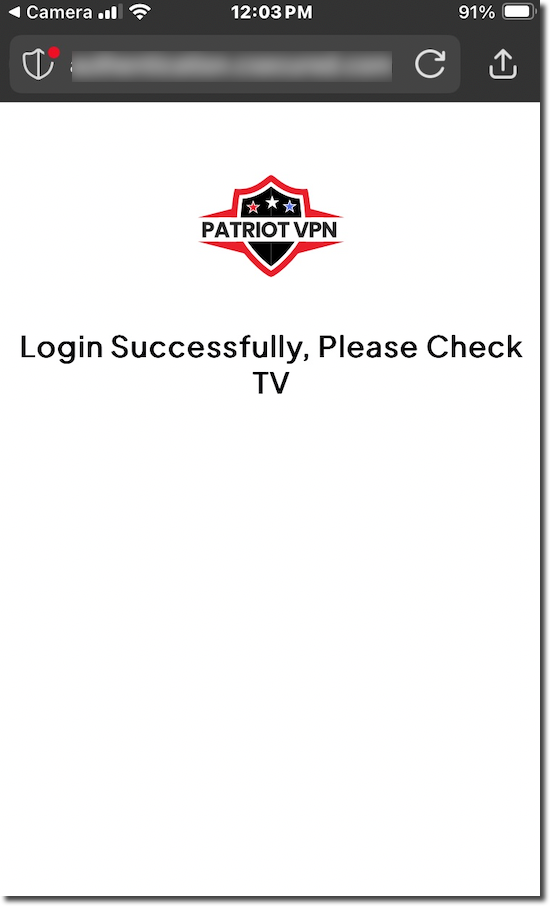
- Once the login is successful you will see the following screen on your computer or mobile device:
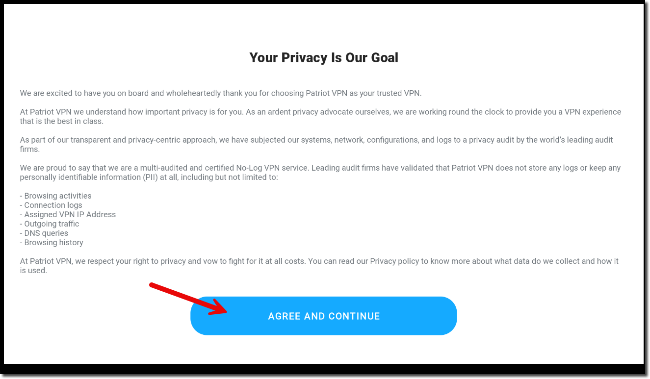
- On your TV you will see the Privacy Statement, click on 'Agree and Continue':
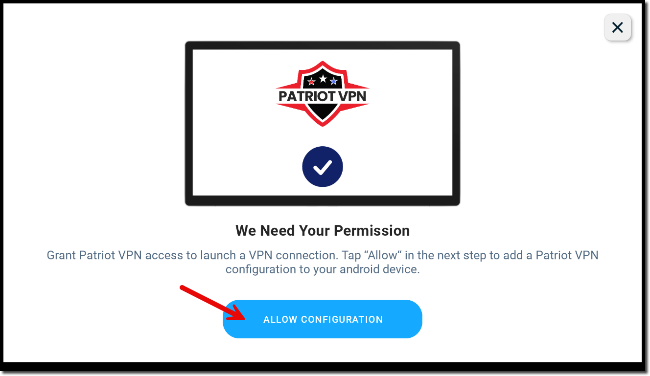
- In order for the VPN to operate on your Android TV you will need to allow it to add the configuration by clicking 'Allow Configuration':
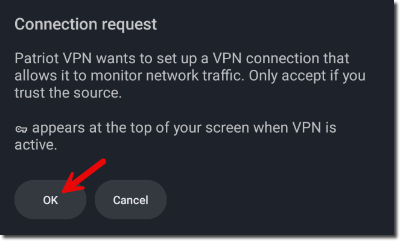
- A connection request window will pop up, click 'Ok' to continue:
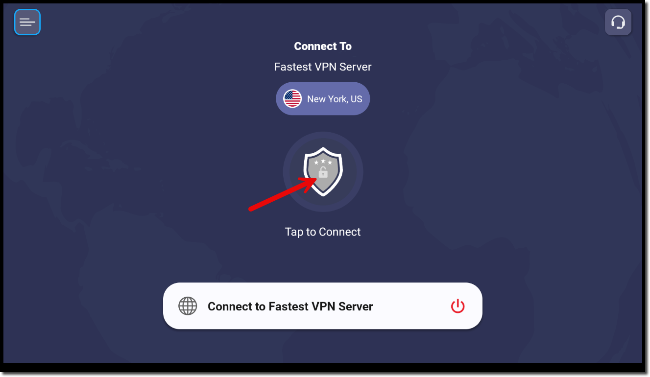
- The PatriotVPN application will start, to connect please click on the greyed out shield in the middle:
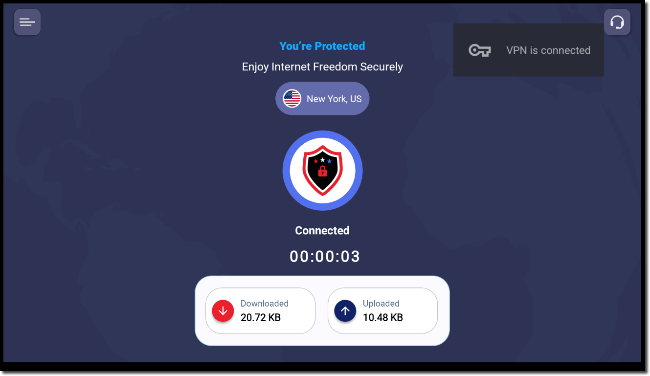
- Once you have successfully connected you will see the shield in the center in full color and the download/upload statistics will start showing the amount of traffic:
- For advanced actions using the PatriotVPN application, please see our Advanced Configuration page.
